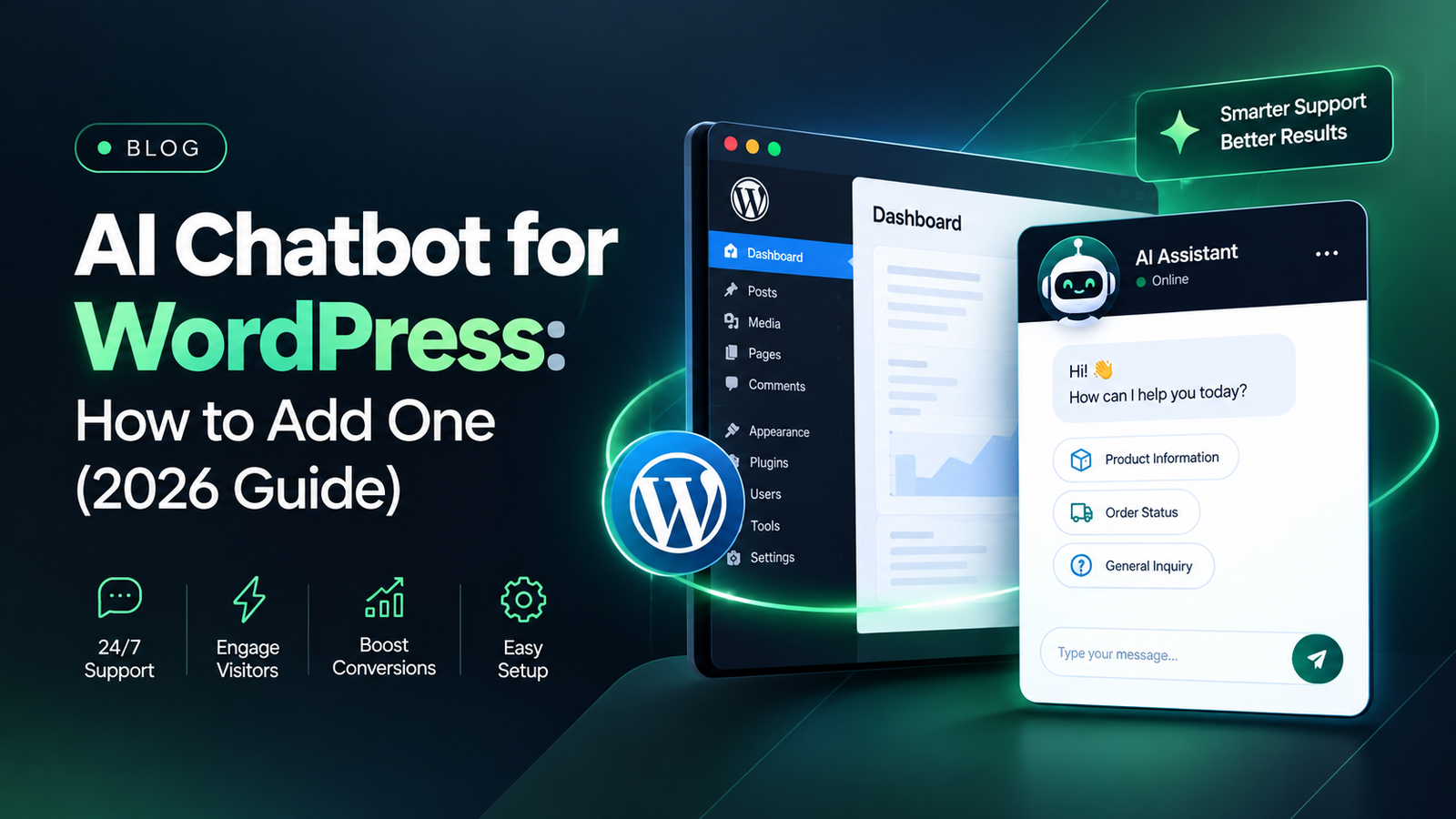
An AI chatbot for WordPress answers visitor questions instantly, captures leads while you’re offline, and takes repetitive support work off your plate. You can add one in two ways: install the provider’s plugin (about ten minutes, no code) or embed the chatbot’s script yourself (a little more control, a little more care). Either way, the install is the easy part. What decides whether the bot actually helps is what you do before and after: backing up, protecting site speed, training it on accurate content, and handling visitor data responsibly.
This guide covers both methods, then the setup, testing and privacy steps most tutorials skip.
Is a chatbot right for your site?
Not every site needs one. A chatbot earns its place when visitors repeatedly ask the same questions: shipping times, pricing, how booking works, where to find a download. If your inbox is full of those, a bot can handle the first line of support. If your site has five pages and two inquiries a month, a clear contact form will serve you better.
Be honest about the goal before you pick a tool. Are you trying to cut support time, qualify leads, or help shoppers find products? The answer shapes every decision below.
Step 1: Choose a chatbot platform that fits your site
Platforms differ in how they connect to WordPress, how much they can learn about your content, and how they charge. Here’s a practical way to sort the common options:
| Type of tool | Good for | How it connects | Watch out for |
|---|---|---|---|
| Live chat with an AI layer (e.g. Tidio) | Small businesses that want AI plus human handoff | Official WordPress plugin | AI features may sit behind paid tiers |
| No-code flow builders (e.g. ChatBot) | Scripted, predictable conversations | Plugin or script | Less flexible for open-ended questions |
| Conversational page builders (e.g. Landbot) | Lead capture and landing pages | Embed script | Better for forms than for support |
| Custom bot on an AI model API (e.g. OpenAI) | Answers grounded in your own content | Custom code or a developer-built plugin | Usage-based costs and more setup |
Pricing and features change often, so check each provider’s current plans rather than relying on any comparison, including this one.

A few matching tips:
- WooCommerce store? Look for a bot that can read your product catalog and order status, not just FAQs.
- Membership or course site? Choose one that can respect logins and point people to the right lesson.
- Visitors in several countries? Confirm real multilingual support, not just translated buttons.
- Want a human backup? Check that live-agent handoff is included.
Step 2: Prepare your site before installing anything
Five minutes here saves hours later.
- Take a full backup. Use your host’s backup tool or a plugin like UpdraftPlus, and confirm the backup actually completed. If a script conflict breaks your layout, you can roll back in a minute instead of rebuilding.
- Test on staging if you can. Many hosts offer one-click staging. Installing there first means visitors never see a half-working chatbot.
- Record a speed baseline. Run your homepage and a key page through Google PageSpeed Insights or GTmetrix and save the scores. Chatbots load third-party scripts, and without a “before” number you won’t know what they cost you.
- Clear your caches. Purge your caching plugin, CDN and server cache so old files don’t mask or fight the new widget.
- Check your privacy policy. Chatbots can collect names, emails and full conversations. Your policy should say so plainly.
Method 1: Add the chatbot with a WordPress plugin
This is the right choice for most site owners. It needs no code and the provider maintains the integration.
- In your dashboard, go to Plugins → Add New and search for your chatbot provider by name.
- Make sure the plugin is the official one from the provider (check the author and recent update date), then click Install Now and Activate.
- Open the plugin’s settings. They usually appear as a new item in the left menu or under Settings or Tools.
- Connect your account. You’ll either log in to the provider or paste an API key or project ID.
- Pick where the widget appears and save.
- Open your site in a private browser window to confirm the chat bubble shows up.
If something doesn’t appear, it’s almost always caching (see troubleshooting below).
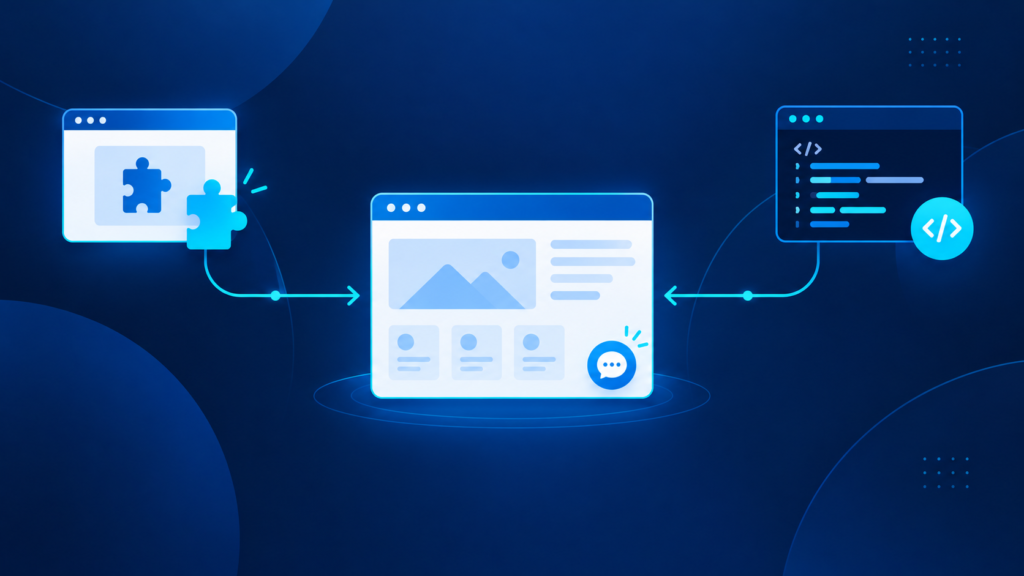
Method 2: Embed the chatbot code manually
Choose this if your provider has no WordPress plugin, or if you’re connecting a custom bot.
- In your chatbot provider’s dashboard, find the install or embed section and copy the JavaScript snippet. Copy all of it, including the opening and closing
<script>tags. - Install a snippet manager such as WPCode.
- Create a new snippet, paste the code, and set it to load in the site-wide footer. Loading in the footer helps keep the script from blocking your page content.
- Save, activate, and clear your caches.
- Check the live site in a private window.
Avoid pasting the snippet straight into your theme’s footer.php. A theme update will quietly erase it. If you must edit theme files, use a child theme.
One security rule for custom AI bots: never put a secret API key in front-end JavaScript. Anyone can view page source and copy it. A custom bot should send requests to a small server-side endpoint (a plugin or serverless function) that holds the key and talks to the AI provider on your behalf.

Step 3: Set the chatbot up so it actually helps
A default install usually feels generic. Spend an hour on these:
- Write a specific welcome message. “Hi, I can help with shipping, returns and sizing” beats “How can I help you today?” Add two or three clickable starter questions.
- Feed it your real content. Train or connect it to your FAQs, help articles, product pages and policies. A bot answers from what it’s given, so thin or outdated source material produces confident wrong answers.
- Decide what it must not do. Tell it to avoid pricing promises, legal or medical advice, and anything it can’t verify. When unsure, it should say so.
- Add a human fallback. For complex or frustrated visitors, offer a clear route to email, a contact form or a live agent. A bot that traps people hurts more than no bot.
- Match your brand. Adjust colors, name, avatar and tone so it feels like part of your site, not a bolted-on widget.
Step 4: Test it like a visitor, then keep watching
Before you announce it:
- Try it on desktop, tablet and phone, in at least two browsers.
- Ask the questions your customers really ask, including badly worded ones, and check answers against your actual policies.
- Click every link the bot gives you.
- On mobile, make sure the chat button doesn’t cover your cookie banner, menu or a checkout button.
- Re-run your speed test and compare it with your baseline.
After launch, read the conversation logs weekly for the first month. Unanswered questions show you what content is missing from your site, and often that’s more valuable than the chatbot itself.
Protect your site speed
A chatbot is a third-party script, and heavy ones can slow your pages and hurt Core Web Vitals. To limit the damage:
- Load the widget after the page content, or only after the first user interaction, if your provider supports it.
- Only show it on pages where it’s useful (support, pricing, product pages) rather than sitewide.
- Remove it from checkout pages unless you’ve tested that it doesn’t interfere.
- Re-test speed after every provider update.
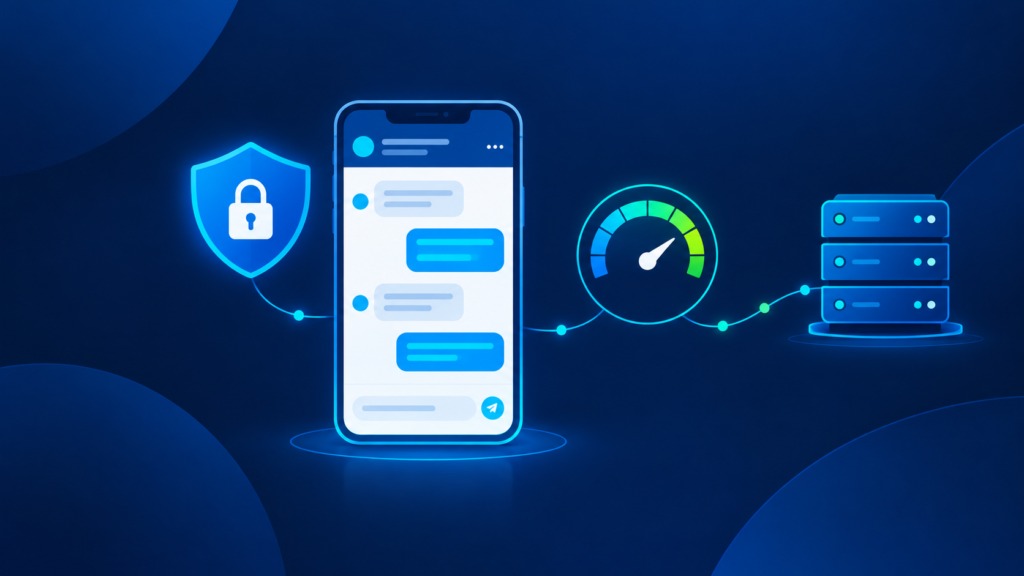
Privacy and security basics
Chat transcripts are personal data. Treat them that way.
- Tell visitors a bot is a bot, and link to your privacy policy in the chat window.
- If you serve visitors in the EU or UK, get consent where required and check how long the provider stores conversations and where.
- Don’t let visitors paste payment details, passwords or health information into the chat, and say so in the welcome message.
- Keep WordPress, your plugins and the chatbot plugin updated. Outdated plugins are a common way sites get compromised.
Troubleshooting common problems
The widget doesn’t show up. Clear your caching plugin, CDN and browser cache, then test in a private window. Also check whether your optimization plugin is delaying or combining JavaScript, and exclude the chatbot script if so.
It shows on desktop but not mobile. Check the provider’s visibility settings and make sure a mobile-specific rule or ad blocker isn’t hiding it.
The site got slower. Compare against your baseline, limit which pages load the widget, and consider a lighter provider.
Layout broke after install. Restore your backup, then reinstall on staging and watch for a conflict with another plugin or your theme.
The bot gives wrong answers. Update the source content it learns from and tighten its instructions. Don’t just keep re-asking.
When to bring in a developer
Plugin installs are fine to do yourself. Bring in help when you want a custom bot trained on your own documents, need it connected to WooCommerce orders or a CRM, have strict privacy requirements, or can’t afford to risk a live store. At WebClyde we build custom WordPress and WooCommerce integrations that stay fast and secure, and we can also maintain them afterwards through our WordPress security and maintenance service. If you want a bot built around your business, book a free technical audit and we’ll tell you honestly whether a plugin will do or whether custom is worth it.
Can I add an AI chatbot to WordPress for free?
Yes, several providers offer free plans that cover basic chat and simple automation. Advanced AI answers, higher conversation volumes and human handoff are often on paid plans, so check current limits before committing.
Will a chatbot slow down my WordPress site?
It can, because it loads an external script. Test before and after, load it only on relevant pages, and choose a provider known for a lightweight widget.
Do I need coding skills?
Not for the plugin method. The manual method only needs copy and paste into a snippet plugin. A fully custom bot connected to an AI API does need a developer.
Is it safe to connect an AI chatbot to my WooCommerce store?
It can be, if the integration only reads the data it needs, the API keys stay on the server, and you’ve reviewed the provider’s data handling. Test on staging first.
How do I know if the chatbot is working?
Review conversation logs, track how many chats end in a lead or resolved question, and watch how many get handed to a human. If the same unanswered questions keep appearing, improve your content or the bot’s instructions.